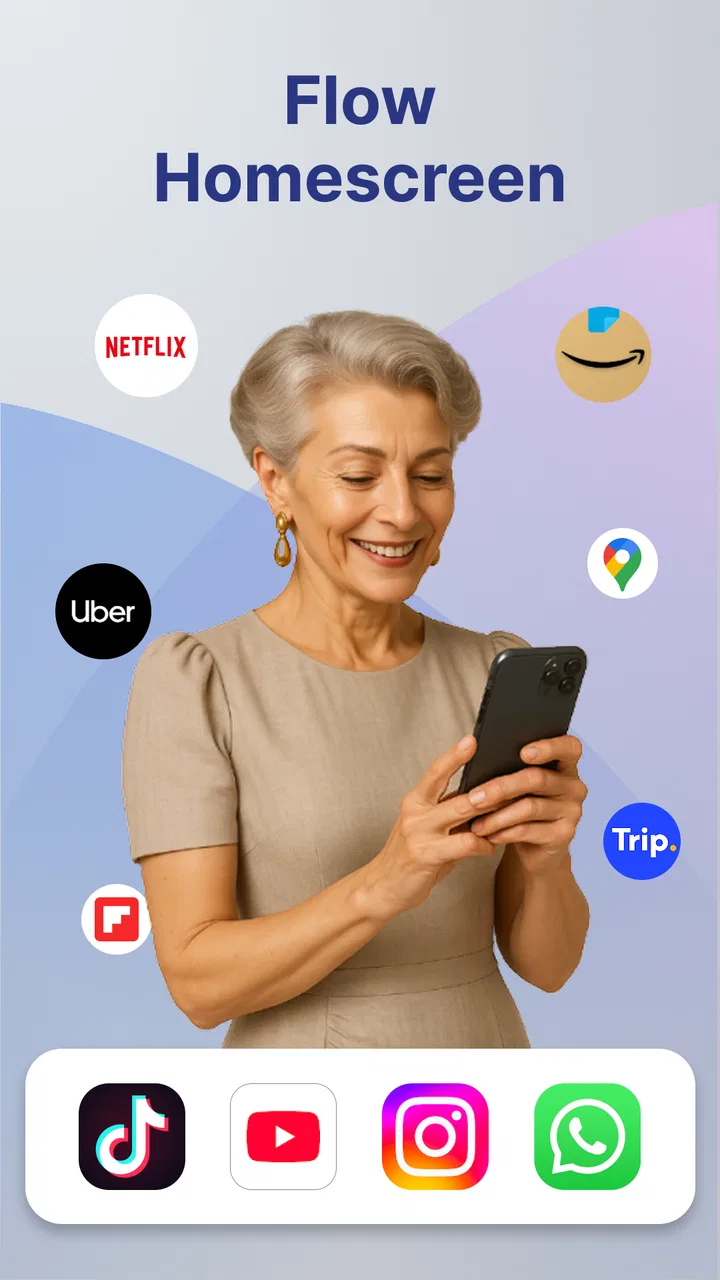
Flow Homescreen
- 4.5
- Rating
- 50.00K
- Installs
- Free
- Price
 Analysis by App-foxy
I installed Flow Homescreen to see whether it could make an everyday Android phone feel calmer and more purposeful, rather than simply adding another layer of decoration. Developed by Build4world, this free personalization app takes a focused approach: it is meant to reshape the way the home screen supports daily routines. That makes it more interesting than a wallpaper changer, but also less suitable for someone who wants a huge catalog of visual effects and elaborate customization.
My first impression was that the app’s value depends less on flashy presentation and more on whether its layout helps you reach the things you use repeatedly. A home screen is visited dozens of times during a normal day, so even a small reduction in visual clutter can matter. At the same time, any replacement for the standard launcher has to earn its place by feeling dependable. If it slows down basic actions, behaves unpredictably after a restart, or makes familiar tasks harder, the personalization is not worth the trade-off.
How Flow Homescreen feels during ordinary use
The app sits in the personalization category, but I would describe its purpose more precisely as organizing the first screen you see. Its store summary, “Transform your phone. Streamline your life,” points toward a practical experience rather than a purely decorative one. I found that distinction useful when judging it: the important question is not whether it can make a screenshot look attractive, but whether the new arrangement remains comfortable when I am in a hurry.
You May Also Like

 Blood Strike: 2.5 Anniversary
Blood Strike’s Loadouts Turn Every Drop Into a Tactical Gamble
A close look at Blood Strike’s custom loadouts: how fast access to signature weapons reshapes its battle royale rhythm, rewards preparation, and narrows the gap between fights.

 Pandora - Music & Podcasts
Pandora’s Music Is Easy to Start, but Harder to Recover
Pandora’s strength is its low-effort path from a seed to a station. Its weak spot is how much confidence it asks you to place in connection, setup, and quiet recovery.

 8 Ball Pool
8 Ball Pool Is Built on Rivalries, Rematches, and Routine
A close look at the rivalries, rematches, shared routines, and unanswered safety questions that turn a quick pool match into a persistent mobile community.

 Samsung Music
Samsung Music’s Quiet Strength Is Playing What You Already Own
Its reach comes less from spectacle than from dependable access to a personal library. That simplicity is both the app’s strongest retention engine and its ceiling.

 AccuWeather: Weather Radar
AccuWeather Review: A Quick, Clear Forecast for Everyday Decisions
For everyday plans, the best forecast is the one you can understand quickly. AccuWeather makes rain timing, radar, and local conditions easy to act on, with a few trade-offs.

 Hill Climb Racing
Why Hill Climb Racing Still Turns Crashes Into One More Run
A tiny car, a bumpy hill and one more upgrade: Hill Climb Racing keeps resurfacing because its simple chaos makes every near-miss feel personal.
More From Our News Desk
View All News


On a newer device, the basic expectation is a responsive transition between the home screen and the apps you need. Flow Homescreen is not presented as a demanding game or a media editor, so I would not install it expecting heavy processing. Its role is closer to a daily interface layer. That usually means the most noticeable performance factors are how quickly the home screen appears, how smoothly it reacts to taps and swipes, and whether it remains consistent after the phone has been idle.
I would still avoid promising identical results on every Android phone. The app supports Android 8.0 and later, which covers a wide range of hardware generations. A recent phone with ample free storage and memory will naturally provide a different baseline from an older device that is already struggling with system animations, background services, or a crowded storage drive. The app’s current version is 1.2.6, so users should also keep their expectations tied to the version they actually install rather than assuming that every phone will behave the same way.
Why the first setup deserves patience
The temptation with any home-screen replacement is to rush through setup, place it in front of your usual launcher, and judge it within a minute. I think that is the wrong approach here. The useful part of Flow Homescreen is likely to appear only after you decide which actions deserve immediate access and which ones can stay out of sight. If you reproduce the same cluttered arrangement you already have, you may not notice much benefit.
I recommend beginning with a short list of daily destinations: communication, navigation, work, entertainment, and anything you check repeatedly. Put those in the most natural reach area instead of filling every open space. This creates a practical test. If you can complete common actions with fewer glances and less searching, the app is doing something meaningful. If you still have to scan a crowded page for every icon, the change is mostly cosmetic.
Another useful test is to use the phone one-handed for a while. A layout that looks balanced when viewed on a desk may feel awkward when your thumb is occupied or when you are walking. I paid attention to whether the arrangement encouraged quick, deliberate choices or made me pause to look for familiar items. That kind of friction is easy to overlook in a store preview but becomes obvious after several ordinary unlocks.
What happens during a busy day
The most revealing performance test for a launcher is not a single opening. It is the repeated cycle of unlocking the phone, checking something, switching to another app, returning home, and doing it again while several other applications remain in memory. A home screen should act as a stable landing point during that cycle. If it has to redraw often or loses its arrangement, confidence drops quickly.
Flow Homescreen makes the most sense for people who want a predictable starting point between tasks. Imagine a weekday morning: I check a message, open a calendar, look at a route, then return to the home screen before starting a call. The benefit is not a dramatic speed boost. It is the possibility of keeping those transitions visually simple. In this scenario, a restrained layout can reduce the number of decisions I make before getting to the next task.
There is also a trade-off. A highly organized home screen can become too rigid if your day changes constantly. Someone who regularly installs temporary tools, tests new apps, or moves between several unrelated projects may prefer the flexibility of the default launcher. Flow Homescreen is more convincing when your phone has a stable group of recurring activities. It is less compelling if you treat the home screen as a constantly changing workspace.
During heavier use, I would watch for three practical signs: whether the home screen returns promptly after closing an app, whether icons or arrangements remain in place, and whether the phone feels warmer or less responsive than usual. Those observations are more useful than assuming that a personalization app is automatically light or automatically demanding. The experience can depend on the phone, the number of installed apps, and the rest of the system running in the background.
Stability matters more than visual novelty
A launcher has a special reliability requirement because it is involved in nearly every phone session. A small problem in a rarely used app is inconvenient; a problem on the home screen can interrupt the entire device routine. That is why I judge Flow Homescreen primarily by how confidently I can return to it after multitasking, locking the screen, or restarting the phone.
My advice is to keep your previous launcher arrangement easy to restore while you evaluate this one. Do not immediately delete your old setup or scatter essential shortcuts across multiple screens. Spend a few days checking whether the new layout remains comfortable and whether your phone consistently returns to the expected home screen. This is not a criticism of Build4world; it is simply sensible practice whenever an app changes a core part of Android navigation.
Recovery is another part of the experience that deserves attention. If the app ever stops responding, the important question is whether you can still reach essential functions through Android’s system controls and return to a familiar launcher. I would keep the app’s settings path and the phone’s default-home-screen controls in mind before making a permanent switch. That small preparation can save frustration, especially on an older phone where restarting a launcher may take longer.
Users should also remember that Android manufacturers handle home-screen behavior differently. Battery management, background restrictions, gesture navigation, and system updates can affect how a launcher behaves. If Flow Homescreen feels inconsistent after an update, the first step should be checking the phone’s default-app and battery settings rather than assuming the app itself is broken. The same practical check applies after changing navigation modes.
Older phones and the Android 8.0 baseline
The minimum operating-system requirement of Android 8.0 makes Flow Homescreen accessible to many existing phones, which is helpful if you are trying to refresh an older device instead of replacing it. However, compatibility is not the same as identical performance. Android support tells you that the device can install the app; it does not guarantee that every transition will feel as quick as it does on newer hardware.
On an older phone, I would keep the evaluation simple. Start with a clean home screen, avoid judging the app while a large system update or backup is running, and test it after the phone has been used for a full day. Pay attention to returning from memory-heavy applications, because that is where a modest device may reveal delays. If the launcher itself remains responsive but other apps are slow, the limitation may be the phone rather than Flow Homescreen.
Storage conditions can matter too. A device that is nearly full may behave poorly across the system, making it difficult to separate launcher performance from general Android sluggishness. Clearing unused downloads and leaving reasonable free space is a sensible preparation before testing any new home-screen app. It also gives you a fairer impression of whether the interface is adding noticeable resource pressure.
For a newer phone, the decision is different. You are less likely to choose Flow Homescreen because the default launcher is unbearably slow. Instead, you would choose it because its approach to organization suits you better. In that situation, the performance bar is high: the app needs to feel at least as dependable as the built-in option while offering a clearer daily workflow.
Who will get the most from the change
I think Flow Homescreen is a good match for someone who opens the same small group of apps throughout the day and wants those choices to feel more intentional. It may also suit people who find a standard home screen visually noisy, especially when unused shortcuts, promotional widgets, and old folders accumulate over time. A simpler starting point can make a phone feel refreshed without requiring a new device.
It is also worth considering for a family member who is comfortable with Android but gets lost among too many icons. A carefully prepared layout can make the first step after unlocking more obvious. I would set it up together rather than changing someone else’s phone without explanation, because familiarity is part of usability. The neatest arrangement is not automatically the best one if it removes shortcuts that person relies on.
On the other hand, I would skip it if you depend heavily on the exact behavior of your manufacturer’s launcher, including its specialized widgets, tightly integrated search, or distinctive gesture shortcuts. I would also hesitate if you frequently change icon positions or use the home screen as a dense dashboard. In those cases, the default launcher may offer a more complete and less disruptive fit.
The age rating is Everyone, and the app is free, so the barrier to trying it is low. Still, “free” should not be confused with “effortless.” The real cost is the time spent arranging your starting point and learning a different rhythm. If you are unwilling to spend that time, you may uninstall it before seeing whether its organization helps.
Practical ways to evaluate it fairly
I would use a three-stage trial. First, create a deliberately small home screen and use it during a normal morning. Second, test it while moving rapidly between several apps, including the ones you use most often. Third, lock and unlock the phone repeatedly, then check the layout after a restart. This sequence exposes both everyday convenience and the recovery behavior that a quick installation cannot show.
One non-obvious tip is to judge the app by the number of times you hesitate, not just the number of taps. A layout can require the same number of actions as the default launcher but still feel better if your eyes find the right target immediately. Conversely, a visually minimal screen may slow you down if it hides important destinations behind extra steps. Track the moments when you search, back out, or open the wrong app; those are the clearest clues about whether the arrangement works.
A second tip is to separate “rarely used” from “unimportant.” An app you open once a week may still be critical when you need it. Keep essential emergency, travel, authentication, and communication tools easy to locate even if they are not part of your daily routine. Personalization is useful only when it respects the difference between frequency and importance.
A third trade-off involves experimentation. I would change one part of the layout at a time instead of redesigning everything every evening. If you alter icons, folders, shortcuts, and navigation habits simultaneously, you will not know which change helped or caused friction. A gradual approach makes the app easier to understand and gives you a more reliable performance impression.
How it compares with the usual alternatives
The closest alternative is the launcher already installed on your Android phone. That option normally wins on familiarity and manufacturer integration. It is the better choice if you want every existing gesture, widget, and system shortcut to behave exactly as before. Flow Homescreen needs to justify the switch through a more focused experience, not merely a different appearance.
Traditional third-party launchers often appeal to users who want extensive control over grids, icons, animations, gestures, and visual themes. If your priority is deep technical customization, one of those tools may be more suitable. Flow Homescreen’s appeal is narrower and more approachable: it is for someone who wants the home screen to support a simpler routine without turning setup into a long design project.
There is also a difference between this kind of app and a wallpaper or widget tool. A wallpaper changes the mood of the phone, while a widget can put information in front of you. Flow Homescreen addresses the structure of the starting point itself. That can have a more lasting effect on daily use, but it also means you must adapt to its organization rather than simply applying a visual layer and carrying on as usual.
The app has already attracted over fifty thousand installs and holds an average rating of 4.5 from around a thousand ratings, with more than two hundred written reviews. Those figures suggest that it has found an audience, but they should not replace your own test. Home-screen preferences are unusually personal. A layout that feels calming to one person can feel restrictive to another, and performance can vary across the broad range of devices supported by Android 8.0 and later.
My performance verdict
After looking at Flow Homescreen as a daily interface rather than a novelty, I see its strongest case in focused organization. It is not the app I would recommend to someone chasing the most elaborate launcher toolkit. I would recommend trying it to a person who wants fewer distractions at the starting point, uses a consistent set of apps, and is willing to spend a little time arranging the phone around real habits.
Its performance should be judged by steadiness: quick access to the home screen, consistent recovery after multitasking, and a layout that remains dependable through ordinary use. Because the app runs across devices from Android 8.0 onward, I would be more cautious on older or heavily loaded phones and would test it before making it the permanent default. On a capable device, the main question is likely to be workflow fit rather than raw speed.
Build4world has made a free personalization app that is easy to try and potentially useful beyond surface-level decoration. I like that its purpose can be evaluated through a real routine instead of a staged screenshot. My final recommendation is conditional but positive: give it a few days, keep a recovery path to your previous launcher, and judge whether your most common actions feel clearer. If they do, Flow Homescreen is a worthwhile way to make an Android phone feel more deliberate. If you need maximum launcher control or perfect continuity with a manufacturer’s tools, staying with the default option will probably be the smarter decision.
FAQs for Flow Homescreen
01What is Flow Homescreen and how does it work?
Flow Homescreen is an Android launcher designed to replace your standard home screen with a cleaner, more focused interface. Instead of emphasizing rows of app icons, it can organize access around a simple layout, search, shortcuts, and useful information. The exact experience may depend on the version installed and the permissions you allow, so it is worth reviewing its settings after installation.
02Is Flow Homescreen free to download and use?
Flow Homescreen may be available as a free download, although some versions or related features can include optional purchases, premium tools, or advertising. Before installing, check the current Google Play listing for pricing, subscriptions, and in-app purchase details. A launcher also becomes part of your everyday phone experience, so confirm that the available free features meet your needs before making it the default home screen.
03Will Flow Homescreen work on every Android phone?
Flow Homescreen is intended for Android devices, but compatibility can vary according to the phone model, Android version, manufacturer interface, and available system permissions. Some features may behave differently on Samsung, Xiaomi, OnePlus, Pixel, or other devices because manufacturers customize Android. Check the store’s compatibility information and test the launcher carefully before removing or heavily reorganizing your existing home-screen setup.
04Does Flow Homescreen require special permissions?
As a home-screen replacement, Flow Homescreen may request permissions needed for launcher functions, such as displaying over other apps, accessing notifications, setting wallpapers, or showing information and shortcuts. The permissions requested can change between releases. Read each permission prompt rather than accepting everything automatically, and disable access that you do not need. You should also review the app’s privacy policy before granting access to personal data.
05Can I return to my previous launcher after installing Flow Homescreen?
Yes, installing Flow Homescreen should not permanently remove your original launcher. You can normally change the default home app through Android’s Settings, usually under Apps, Default apps, or Home app. It is sensible to remember your previous launcher and back up important home-screen arrangements before switching. If Flow Homescreen does not suit your habits, changing back should restore your normal way of opening apps.
Pros
- Clean
- distraction-free layout keeps essential apps easy to reach.
- Customizable widgets and shortcuts help tailor the home screen.
- Fast navigation feels smooth on most modern Android devices.
- Minimal design can improve focus and reduce visual clutter.
- Useful for users who want an alternative to standard launchers.
Cons
- Some advanced customization options may require a learning period.
- Compatibility can vary across Android versions and device brands.
- Limited visual effects may disappoint users who prefer flashy launchers.
- Certain features may depend on permissions or system settings.
- Battery and performance impact can differ by device configuration.

Flow Homescreen
Gallery